


What happens when your video footage needs to be replaced, but your audio track is already finalized? For many creators, this situation can feel frustrating, especially when voiceovers, interviews, or sound effects are already synchronized. Fortunately, modern editing software makes it possible to update visuals without disturbing the audio. Knowing how to do this correctly can save valuable time and help maintain a polished final video project.
In this guide, you'll learn how to replace part of video, so you can update your visuals fast and keep your edits seamless and professional. Let's dive in!
Contents:
Customizable Video Templates You Might Love:


How to Replace a Clip in a Video without Replacing the Audio
There are many situations where you may want to replace footage in your video, update a scene, replace a visual mistake, add new footage, or refresh outdated content, FlexClip makes it easy to replace part of a video while keeping the existing audio intact.
FlexClip provides a simple and efficient way to replace part of a video without replacing the audio. By separating the original audio track and carefully aligning new footage on the timeline, you can update your videos quickly while maintaining professional-quality sound.
Now, let's check the steps below and learn how to replace a section of your video without affecting the original audio track using FlexClip.

Step 1 Upload Your Video to FlexClip
Head to the FlexClip editing page, and go to the Media tab to upload your video files from your PC, phone, Google Drive, One Drive or Dropbox, and then drag the video onto the timeline.
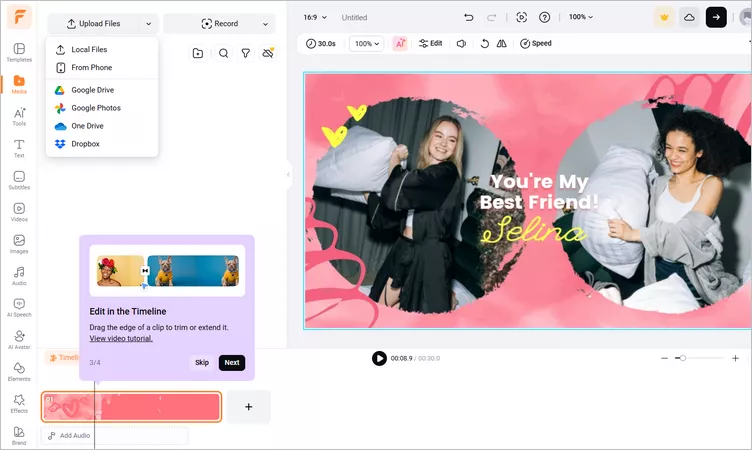
Replace Part of Video - Upload
Step 2 Separate the Audio from the Video
To ensure the audio remains untouched during editing, we need to extract the audio first to keep it intact.
Right-click on the video on the timeline, and select Detach Audio option, then FlexClip will automatically extract the audio and create a separate audio track that remains independent from the video footage.
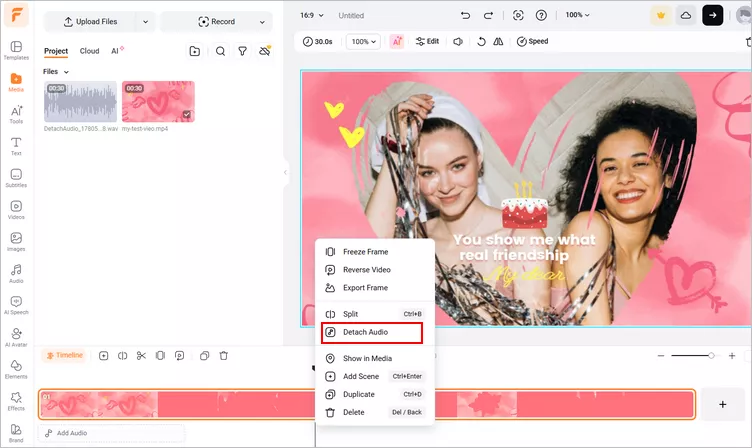
Replace Part of Video - Detach the Audio
Step 3 Locate and Remove the Section You Want to Replace
Now, let's focus on the clip you want to replace. Move the playhead to the beginning of the section you want to change, the use the split feature to split the video at the starting point, then move to the end og the section and split the video again.
You now have a separate video segment that can be removed or replaced without affecting the rest of the project. Just select it and click the Delete button to remove it from the timeline. Because the audio is separated, your soundtrack remains unchanged.
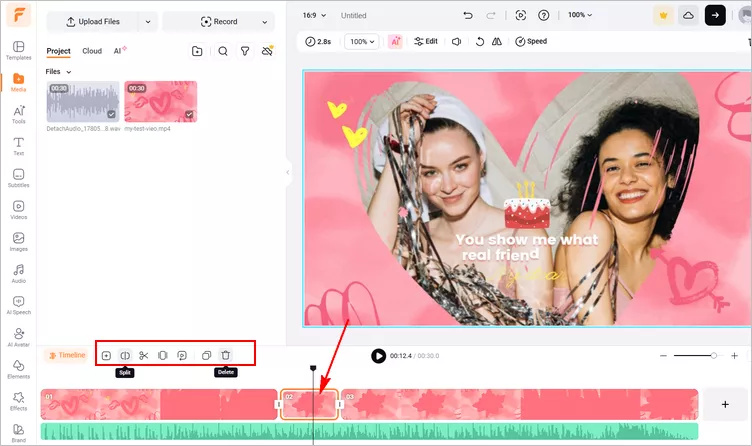
Replace Part of Video - Cut Unwanted Section Manually
Step 4 Add the Replacement Footage to the Video
Now, upload the new footage that will replace the deleted section, and drag it onto the timeline, then position it exactly where the original segment was removed. You can also use trimming and splitting tools to adjust the replacement footage until everything syncs perfectly.
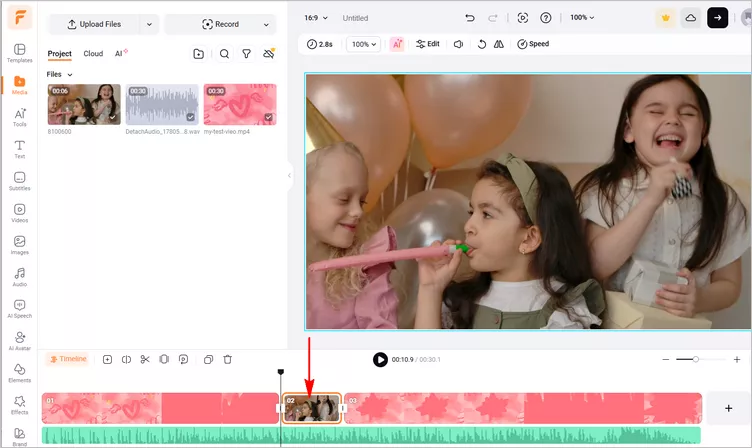
Replace Part of Video - Add the Replacement Footage
Step 5 Add Transitions for a Seamless Edit
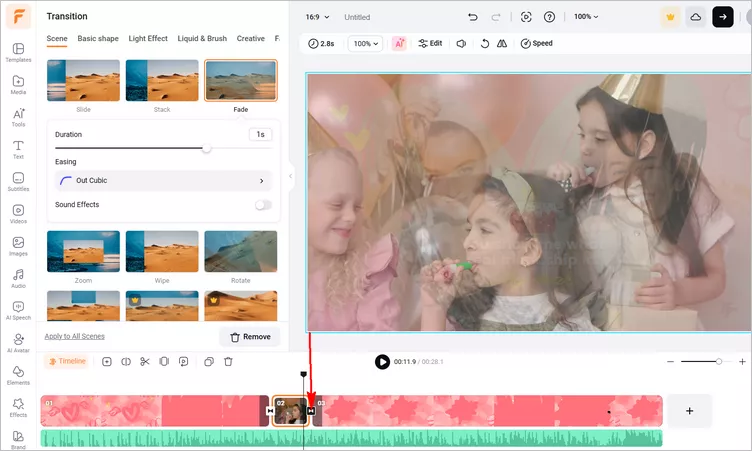
To give your edited video a more polished and professional appearance, take advantage of FlexClip's powerful editing tools to add smooth fade transitions between clips. You can also enhance the visuals with subtle effects, but use them sparingly to ensure the audience stays focused on the content rather than the editing itself.
Replace Part of Video - More Edit
Step 6 preview and Export
When you finished the edit, preview the video to check the audio synchronization and confirm visual consistency. Once satisfied, click Export and choose your preferred video resolution to save your video.
Bonus: Swap the Character in Your Video with FlexClip AI
If replacing clips isn't enough, why not replace the character as well? FlexClip offers AI-powered tools that can allows you to transform the people appearing in your videos, helping you create fresh, attention-grabbing content without additional filming. Whether you want to create unique marketing content, experiment with storytelling, or give old footage a fresh look, AI character swapping can help you achieve impressive results with minimal effort.
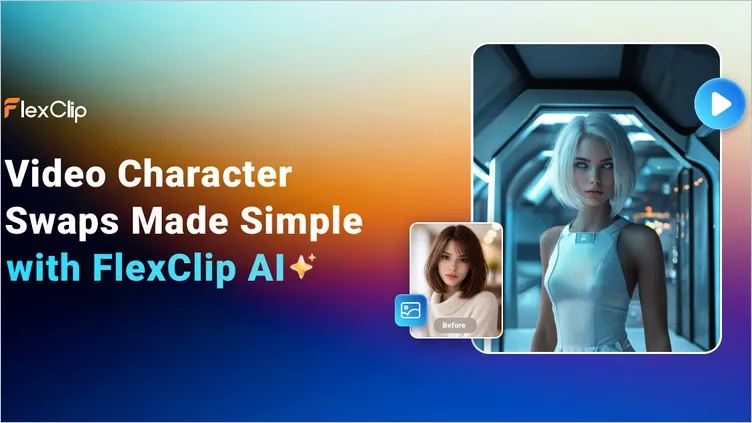
AI Video Character Swap with FlexClip
Now, let's check how you can swap the character in your video with FlexClip's AI Character Swap tool.
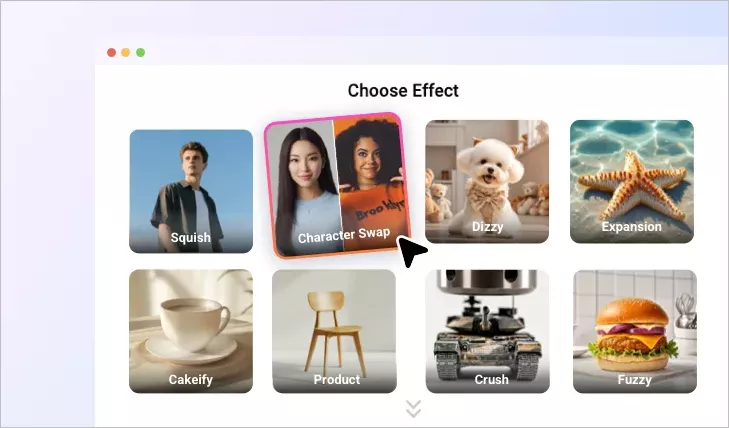
Swap the Character with FlexClip AI - Character Swap effect
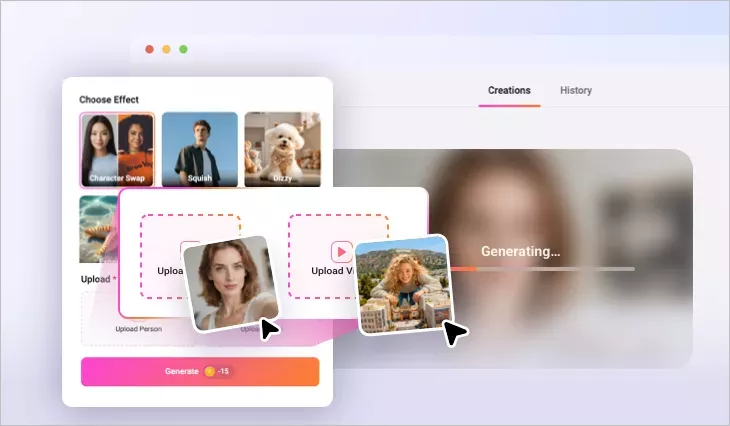
Swap the Character with FlexClip AI - Upload
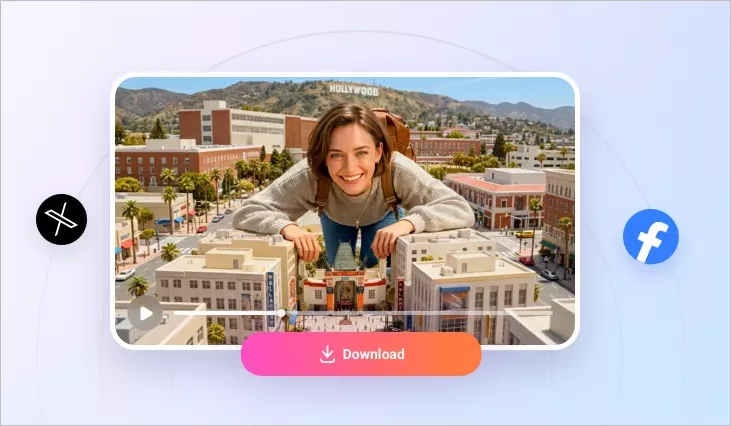
Swap the Character with FlexClip AI - Generate the Character Swap
Final Words
Replacing apart of videos doesn't have to mean redoing everything. With FlexClip, you can quickly swap out unwanted footage, keep your original audio untouched, and produce a polished final video in minutes. Start editing today and see how easy it is to refresh your content while preserving the sound that brings it to life.




FlexClip AI Video Maker
Reach professional-quality videos faster with easy editing tools, templates, and smart AI.
Start Now for Free
Hot & Trending
-

Best Ways to Find Music in YouTube Videos
-

Instagram Story Video Quality Bad After Upload? Fix It!
-

How to Repost Video on TikTok & How to Remove TikTok Repost
-

Improve Video Quality Online: 3 AI Video Quality Enhancers You Can't Miss
-

4K Convert to HD 1080p without Watermark: Best 4k Video Converters
-

Top 13 Birthday Video Makers with Music and Effects Free
-

How to Search Filters on TikTok & Use a Filter You See - TikTok Filter Guide
-

Large Collection of Creative and Funny Birthday Video Ideas for Ones You Care




